The pWin.ai Microsoft Word Add-in now synchronizes the latest proposal draft between the pWin.ai web platform and the Word export saved in SharePoint. While the web version of the platform provides the richest, most powerful features, some teams prefer to work, edit, and collaborate in Microsoft Word. Now teams can edit in their preferred location and ensure the proposal content is in sync everywhere. With the click of a button in Word, pWin.ai presents the latest updates made in both locations and allows the user to confirm which changes to sync. In addition, version history is saved in both Word and the pWin.ai platform so users can review and restore previous versions if necessary. This is another feature from pWin.ai to make the process of writing winning proposals easier and faster.
Freedom to Work in Word, Connected to One True Source of Truth
Work Where You Want. Stay Connected to What’s Current.
Proposal teams use Microsoft Word, not because other tools don’t exist, but because Word is so ubiquitous and habitual. Every team member knows how to use Word and the traditional proposal process is built around it – create the document, store it on SharePoint, manage access, track changes, add comments, save multiple versions, etc. It’s what teams have known for decades.
But the Microsoft Word-based process is highly manual and, even with Copilot, lacks the features and power of pWin.ai, the leading BD, Capture, and Proposal AI platform.
The pWin.ai web platform provides the deep foundation and AI pipelines for knowledge management and curation, capture strategy development, proposal outlining, and first-draft writing in an integrated environment. However, when you need proposal team members to review and edit a draft, it might be easiest to give it to them in Word to make it as easy and fast as possible. With pWin.ai’s Word Add-in, now you can export the proposal draft, save it to your SharePoint, and send the link to your proposal team contributors. With the sync feature, you can have the latest updates in Microsoft Word and the pWin.ai web platform at the same time. This gives you the choice to work in whichever environment that is best for you and your team, and gives you access to all of the other powerful tools in the pWin.ai web platform like compliance and claims reviews.
What the Microsoft Word Proposal Add-in Does Now
Word is now a connected editing location option rather than a separate workflow that is disjointed from the pWin.ai platform. Teams pick how they want to work: refine collaboratively in the web platform, or refine in Word with the Add-in. For Word-based teams, the workflow becomes:
Generate in pWin.ai web platform→ Refine in Word → Sync back to the Proposal Draft stage → Verify, report, and produce final outputs.
The Sync with pWin.ai button compares the Word document against the specific pWin.ai proposal project and determines what is different between the two. Each and every difference is presented to the user and shows the specific differences between the two locations. The user can then select which sections specifically to sync. You never have to worry about manually copy and pasting to merge
Access the pWin.ai Chat Assistant and Proposal Context
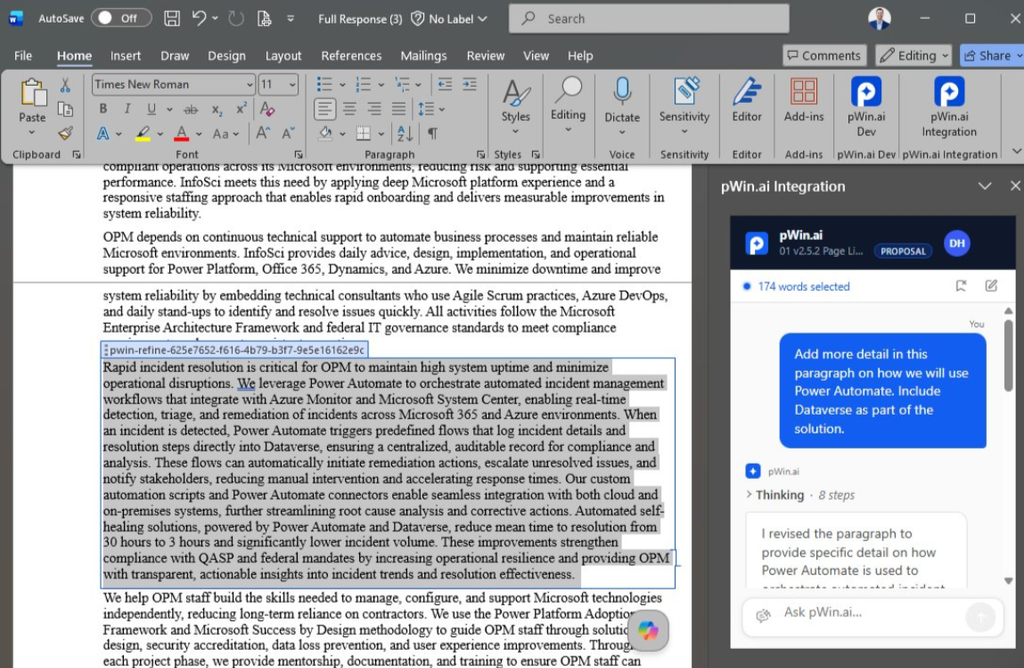
Taking your document into Word doesn’t mean you have to leave behind the power of the platform. The pWin.ai Word Add-in includes access to the pWin.ai Chat Assistant so you can ask it questions, have it review your draft, or prompt it to make edits to the document. This isn’t just some general chatbot though, it has the full context of the solicitation, your proposal strategy, and your historical content. The pWin.ai Chat Assistant knows the specific requirements that must be addressed in each section based on the proposal managers outline, it knows the pain points and win themes from the capture manager’s capture plan, it knows the solutioning approach from your SMEs, and it has access to your past performance library. This means a quick prompt from a user turns the pWin.ai Chat Assistant into a proposal strategist, a proposal writer, a color team reviewer, or an SME for the specific proposal at hand.
Expanding Proposal Collaboration
Access to the pWin.ai Chat Assistant in Word requires a pWin.ai license but the pWin.ai Word Add-in enables a powerful hybrid collaboration experience for those users that don’t have a license. Non-pWin.ai license users can access the Word document to review, edit, and comment, while pWin.ai licensed users can be in the same document at the same time accessing the pWin.ai Chat Assistant and using it to make edits.
Syncing Details
- Compare first: Selecting Sync with pWin.ai performs a comparison scan. Nothing changes in Word or in pWin.ai during that initial scan. You see what is ready to sync, what needs attention, and what already matches, then decide what to update.
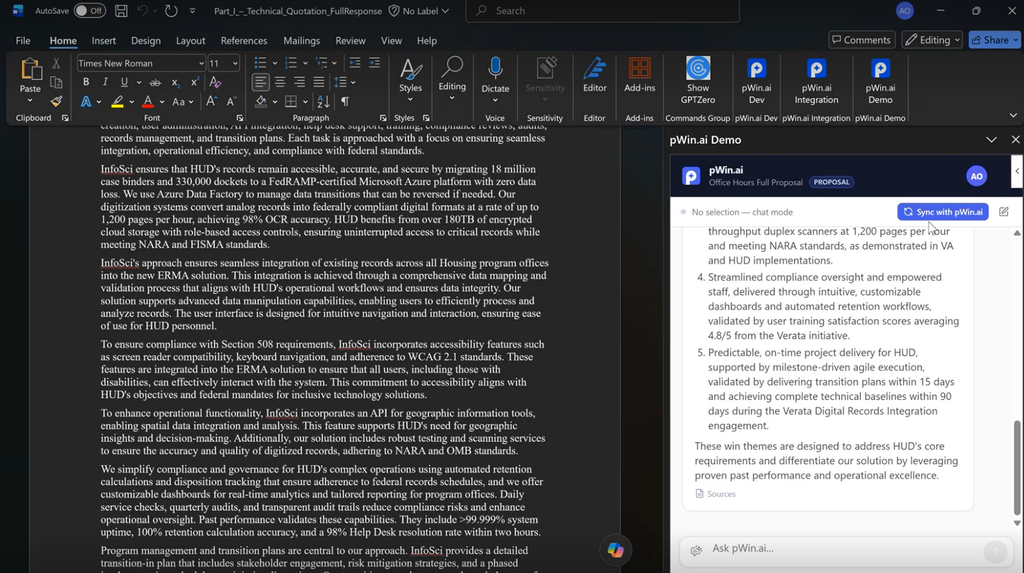
- Identify direction per section: Every affected section is identified as syncing in one of two directions or as needing attention:
1. To pWin: when Word contains the newer section
2. From pWin: when pWin.ai contains newer content
3. Needs attention: when both versions have changed
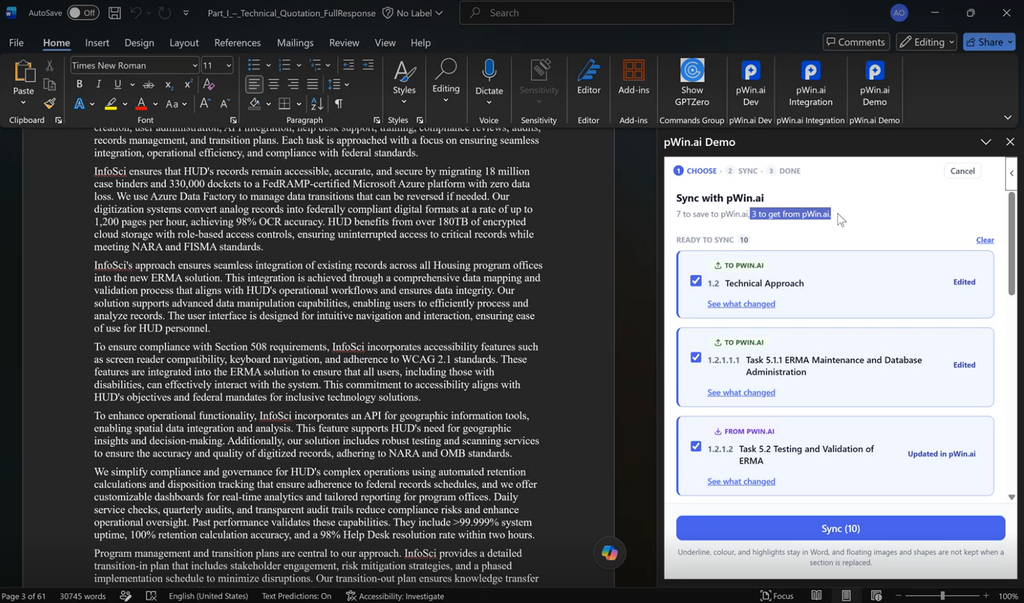
- Different sections move different ways in the same pass: You changed Section 3 in Word, so it goes to pWin.ai. A colleague updated Section 6 in the Proposal Draft stage, so it comes into your Word document. Both happen in one synchronization pass without re-exporting the whole proposal.
- Conflicts require an explicit decision: When the same section changes in both places, neither version is silently overwritten. Parallel work is protected, and the person who understands the change decides which version survives.
- History is preserved: Word changes saved into pWin.ai create a new section version labeled Saved from Word, rather than replacing what was there.
- Access levels are respected: Users with a pWin.ai editor license (typically the proposal manager) have bi-directional sync access and can both pull content into Word and save edits back. Users with a pWin.ai collaborator license have pull-only access to bring the latest pWin.ai content into Word without updating the project draft, keeping the Proposal Manager in control.
The sequence is short: choose, sync, done.
Why It Matters
- Teams review and edit where they work best: Some teams stay in the collaborative web platform experience; others use Word.
- The latest proposal stays available for reports and reviews: Once Word edits are saved back to the pWin.ai proposal platform, you can continue to run compliance reviews and AI assisted remedation, claims reviews, and citation verification.
- Version reconciliation becomes an automated workflow instead of a chore: Determining which version is latest and hand-copying edits turns into a clear section-level process with visible directions, conflict handling, and full version history.
How Each Role Uses It
- Proposal Writer (Working in Word): Pull the draft into Word through the Add-in, work the way you always have.
- Proposal Manager (Keeping One Source of Truth): Track edits clearly as Word updates return labeled as Saved from Word. Use pull-only permissions to distribute review drafts widely without exposing the project to accidental overwrites.
- Subject Matter Expert (Reviewing in the Tool You Already Use): Work in Word without learning a new platform. Edits land in the right section without manual transcription.
- Proposal Reviewer or Color Team Lead (Getting Comments Back Into the Response): Sync review edits back at the section level. Accepted changes become part of the central proposal draft rather than staying stuck in attached documents.
- Proposal Production & Desktop Publishing (Working From Current Content): Final output generation and branded template exports always run against current, synchronized content.
Enterprise Deployment & Security
Deploying a Microsoft Word add-in across an enterprise organization is a common pattern. The pWin.ai Add-in follows compliance, administrative control, and security safeguards. The pWin.ai customer success team partners directly with enterprise IT administrators to ensure smooth setup via centralized Microsoft 365 Admin Center deployment. Admins retain total control over permissions, user access groups, SSO authentication, and data boundaries. The add-in strictly adheres to enterprise data protection policies, ensuring all proposal drafts, AI artifacts, and customer data remain encrypted in transit and at rest without exposing sensitive IP to public model training.
Competitive Differentiation: Word Add-in Capabilities
How do enterprise IT administrators deploy and secure the pWin.ai Microsoft Word add-in?
IT admins can centrally deploy and manage the pWin.ai add-in across the organization through the Microsoft 365 Admin Center using Centralized Deployment. Admin controls allow precise management of user access, single sign-on (SSO), and role-based permissions, ensuring full compliance with enterprise security and data privacy standards.
While other proposal tools focus primarily on lightweight, paragraph-level assistant features—such as text shortening, active-voice rewriting, or generic chat prompts—pWin.ai differentiates itself by bringing the entire Proposal Intelligence model directly into Microsoft Word. As a specialized RFP response add-in for Word, pWin.ai addresses critical challenges in government proposal writing tools and AI proposal software version control:
- True Section-Level Bi-Directional Sync: Unlike other tools that rely on manual text replacement or basic inline insertion, pWin.ai provides formal section-by-section comparison, conflict detection, and clear version tagging (Saved from Word) for seamless bi-directional Word sync for proposals.
- Full Artifact Portability: Take any artifact generated in the pWin.ai web platform—including annotated outlines, compliance findings, claim substantiations, and strategic chat outputs—straight into your document.
- Governed Proposal State inside Word: While other tools treat Word as a basic text editor, pWin.ai embeds full proposal governance, displaying requirement traceability, evidence strength, compliance status, and reviewer findings directly alongside your draft.
- Structured Table & Matrix Portability: Keep compliance matrices and complex tables properly formatted without losing structure or styles during synchronization.
- CUI & FedRAMP Data Security Compliance: Ensure full compliance with strict CUI data boundary protections and centralized M365 deployment alongside robust security controls.
At-a-Glance Feature Comparison
| Feature | Standard AI Word Add-ins | pWin.ai Word Add-in |
| Bi-Directional Section Sync | No (Manual copy/paste) | Yes (Automated section-level pass) |
| Version Conflict Protection | No (Overwrites changes) | Yes (Explicit conflict resolution) |
| Web Platform Artifact Portability | Limited (Text generation only) | Full (Outlines, chats, compliance matrices) |
| Embedded Proposal Governance | No | Yes (Traceability, evidence scoring, audit trail) |
| Version Tagging & Audit Trail | No | Yes (Saved from Word section history) |
| Knowledge Base / Past Performance Search in Word | Basic keyword/prompt search | Contextually mapped with Section L/M lineage |
| Structured Table & Matrix Portability | Plain text / broken formatting | Native formatted compliance matrices & tables |
| Enterprise Security & CUI Compliance | Generic API / unverified | M365 Centralized deployment, CUI data boundary protection |
What This Comes Down To
The pWin.ai web platform provides the richest AI creation environment, but when you need to work with our Microsoft Word proposal add-in, you shouldn’t have to compromise on version control or collaboration.
Generate in pWin.ai, refine in Word with full access to your AI artifacts, sync the latest work back, and produce final outputs using the exact content your team intends to submit. If you would like to see how pWin.ai syncs between Word and a live proposal, request a demo at pwin.ai.
Looking Ahead: Bringing Proposal Intelligence to Excel and PowerPoint
Word is just the beginning. Proposal teams also rely heavily on Excel for pricing models and compliance matrices, and PowerPoint for executive briefings and oral presentations. In upcoming posts, we will explore how pWin.ai extends bi-directional sync, artifact portability, and governed proposal intelligence across the entire Microsoft Office suite—ensuring your numbers, decks, and written responses stay aligned to one central source of truth.
Frequently Asked Questions (FAQ)
Does the Microsoft Word Add-in change my document automatically?
No. Selecting Sync with pWin performs a comparison scan first. You choose which sections to synchronize before anything moves.
What happens if the same section changed in both Word and pWin.ai?
The section is flagged as Needs attention. Neither version is overwritten automatically. You compare the two and decide whether to use the pWin.ai version in Word or save your Word version back to pWin.ai.
Can I add new sections in Word and sync them back?
No. The proposal outline remains the source of truth for section structure and order. To add, remove, rename, or reorganize sections, update the Outline in the proposal project first.
Does all my Word formatting carry back into pWin.ai?
No. Some Word-specific formatting stays Word-only, including underline, color, and highlighting. Certain floating-image and shape behaviors are subject to Microsoft Word API limitations.
Can everyone on my team sync both directions?
Not necessarily. Access levels are respected: users with bi-directional sync access can pull content into Word and save edits back, while users with pull-only access can bring the latest pWin.ai content into Word without updating the project draft.
What happens to previous versions when I save from Word?
Word changes saved into pWin.ai create a new section version labeled Saved from Word, preserving complete section history.
How do I manage version control when editing RFP responses in Microsoft Word?
With pWin.ai’s bi-directional Word sync for proposals, version control is automated. The add-in compares your Word document against the Web Studio draft at the section level, flags changes or conflicts, and saves edits back as a new section version labeled Saved from Word.
How do Microsoft Word comments and track changes work with Web Studio collaboration?
Word’s native collaboration tools—like track changes and comments—remain fully functional while editing in Word. When you synchronize your section edits back to pWin.ai, accepted changes become part of the central draft labeled as Saved from Word, bridging local team collaboration seamlessly with the Web Studio’s overall proposal tracking and governance.